Trade from the chart

See it on the chart.
Trade it from the chart.

Study the chart on Arth.live, then press Trade. The same symbol opens in the QuantPower app, where your own broker is connected through the free QuantPower bridge. From that chart you place, change and exit orders, and each one opens an order sheet for you to check and confirm.

Last updated 16 November 2026.

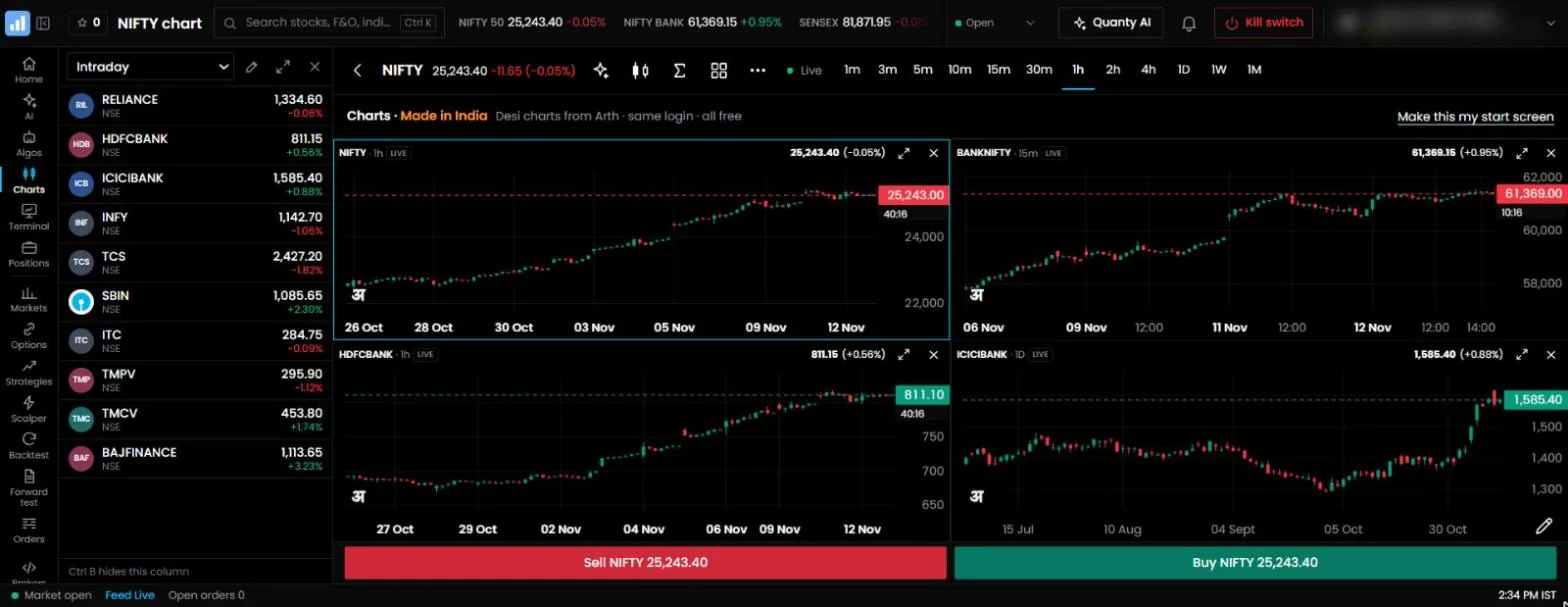
The QuantPower chart screen with four live charts: NIFTY, BANKNIFTY, HDFCBANK and ICICIBANK, with Sell NIFTY and Buy NIFTY buttons under themThe QuantPower chart screen with four live charts: NIFTY, BANKNIFTY, HDFCBANK and ICICIBANK, with Sell NIFTY and Buy NIFTY buttons under them
The chart screen in the QuantPower app: four live charts, with Sell and Buy for the selected symbol under them. Real screen, 12 Nov 2026.

01 / How it works

From the chart
to your broker.

Arth.live is where you study. QuantPower is where your broker is connected. The chart is the same in both, so the levels you drew and the idea you checked are in front of you when you place the order.

Step 01

Study the chart on Arth.live

Open the chart on Arth.live. Add indicators, draw your levels, turn on candle and chart patterns, or lay out several charts side by side. Logged out you work on demo data; logged in with your broker connected you see live prices from your own connection.

Step 02

Press Trade

Every chart on Arth.live has a Trade link at the top (in the menu on a phone). It opens the same symbol on the chart screen of the QuantPower app. You log in with the same account you use on Arth.live: there is one account for both.

Step 03

Connect your broker once

In QuantPower, open Brokers, pick your broker and connect your own account. QuantPower lists 100+ Indian brokers. Your money, holdings and positions stay with your broker; QuantPower is the bridge that carries your orders to it.

Step 04

Act from the chart

The chart now shows your open orders and your position in that symbol as lines. Sell and Buy sit under the chart, and you can start an order at a price on the chart itself.

Step 05

Check and confirm in the order sheet

Every action opens QuantPower’s order sheet with the details filled in: side, quantity, price, order type and product, with a margin preview. You check it and confirm. The chart itself never sends an order.

02 / Your broker

Connect once.
Your own account.

One Brokers screen serves every broker. Your account stays with your broker, and QuantPower carries your orders to it.

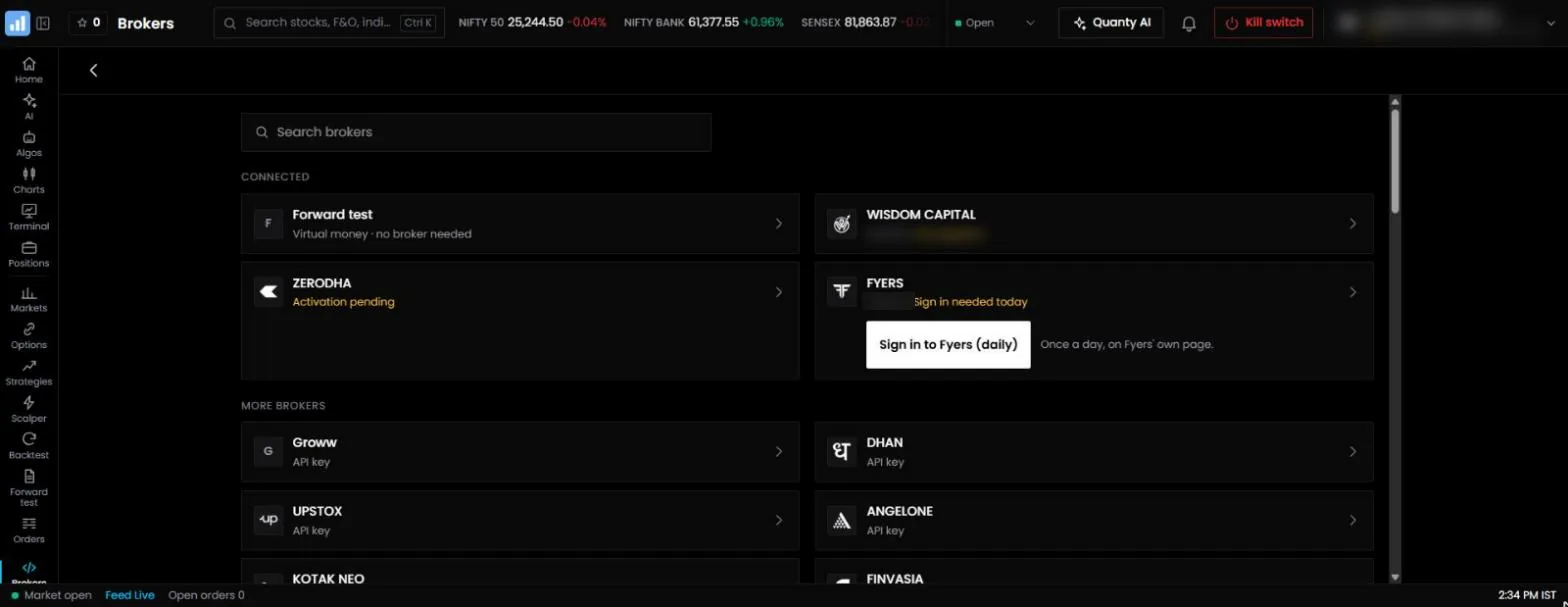
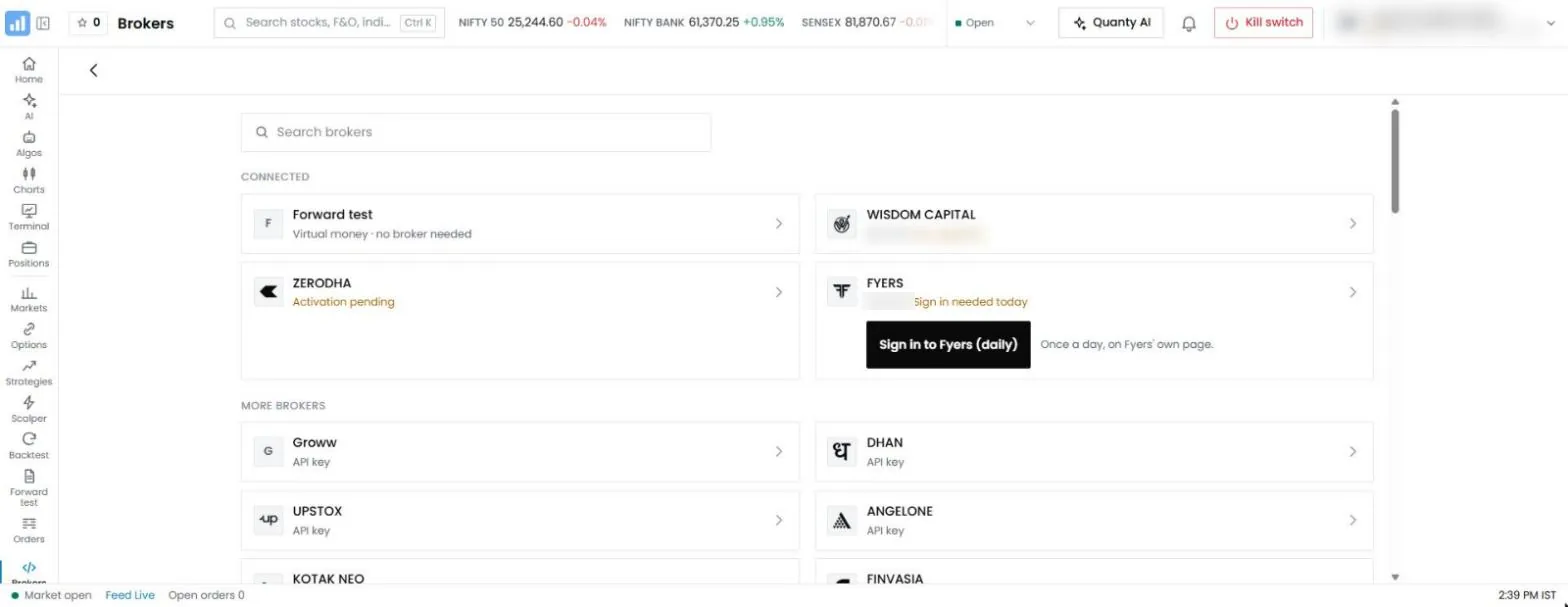
The Brokers screen in the QuantPower app: connected accounts at the top, including Forward test, one broker marked Activation pending and one asking for today’s sign-in, with more brokers listed below and a search boxThe Brokers screen in the QuantPower app: connected accounts at the top, including Forward test, one broker marked Activation pending and one asking for today’s sign-in, with more brokers listed below and a search box
The Brokers screen: your connected accounts at the top, each with its state (connected, activation pending, sign-in needed today), and more brokers below. Account details are blurred. Real screen, 12 Nov 2026.
01

Pick your broker and enter its keys

For most brokers you enter your client code and the API key and API secret from your broker’s developer page. The app sends them once over a secure connection; they are stored encrypted and never shown again, and the screen shows your client code masked.
02

Or sign in on the broker’s own page

Zerodha, Upstox and Fyers use a redirect sign-in: you log in on the broker’s own page and come back. Your broker password never touches QuantPower.

03

Check your live API route

Where your broker hosts QuantPower, the algo uses the broker’s server. Otherwise QuantPower runs it on its servers through your static IP registered at the broker, after the declaration for tech-savvy clients who write their own algos.

04

The daily sign-in

Brokers end a login every day. The Brokers screen shows when your session ends and says “Sign-in needed” when it is time to sign in again.

03 / On the chart

Your orders,
as lines on the chart.

Once your broker is connected, the chart in QuantPower shows your own trading state in the symbol you are looking at. Tap a line to see it and act on it.

Lines the chart draws and the actions each one offers
On the chartWhat it showsWhat you can do
Open orderA line at the order’s price: the limit price, or the trigger for a stop order that is still waiting. The tag shows the side, the quantity and the order type.Cancel it. Drag the line to a new price: the order sheet opens with the new price for you to confirm.
PositionA line at your average price, with the profit or loss on its tag.Exit it. The exit opens the order sheet for you to confirm.
GTTA line at each trigger price of a good-till-triggered order.Delete it, or drag it to a new trigger. A sheet shows the old and the new trigger before anything is sent.
Forward test positionA line marked “Forward test” for a position in your virtual-money account.See it on the chart next to your real ones, without mixing the two.
A new order at a priceStart a new order at the price you pick on the chart.The order sheet opens at that price, ready to check and confirm.

Every action opens the app’s own order sheet. The chart never sends an order by itself, and a check in the build stops any chart code that tries to.

04 / The order sheet

Check it,
then confirm.

Sell, Buy, a line you dragged or a price you picked all open the same order sheet, with the details already filled in from the chart.

What an order placed from the chart can be
SideBuy or Sell.
Order typeMarket, Limit, SL (stop-limit) and SL-M (stop-market).
ProductIntraday and Delivery for equity cash, and MTF where your broker’s set-up offers it. Intraday and Overnight for F&O, commodity and currency.
ValidityDay, IOC or GTD.
MarketsNSE and BSE cash and F&O, commodity (MCX, NSE and BSE) and currency (NSE and BSE).
Before you confirmThe sheet shows a margin preview, and margin is checked before the order is sent.

05 / Large orders

Iceberg orders,
one leg at a time.

For a large order you may not want to show the whole quantity at once. Switch on Iceberg in the order sheet and choose the number of legs.

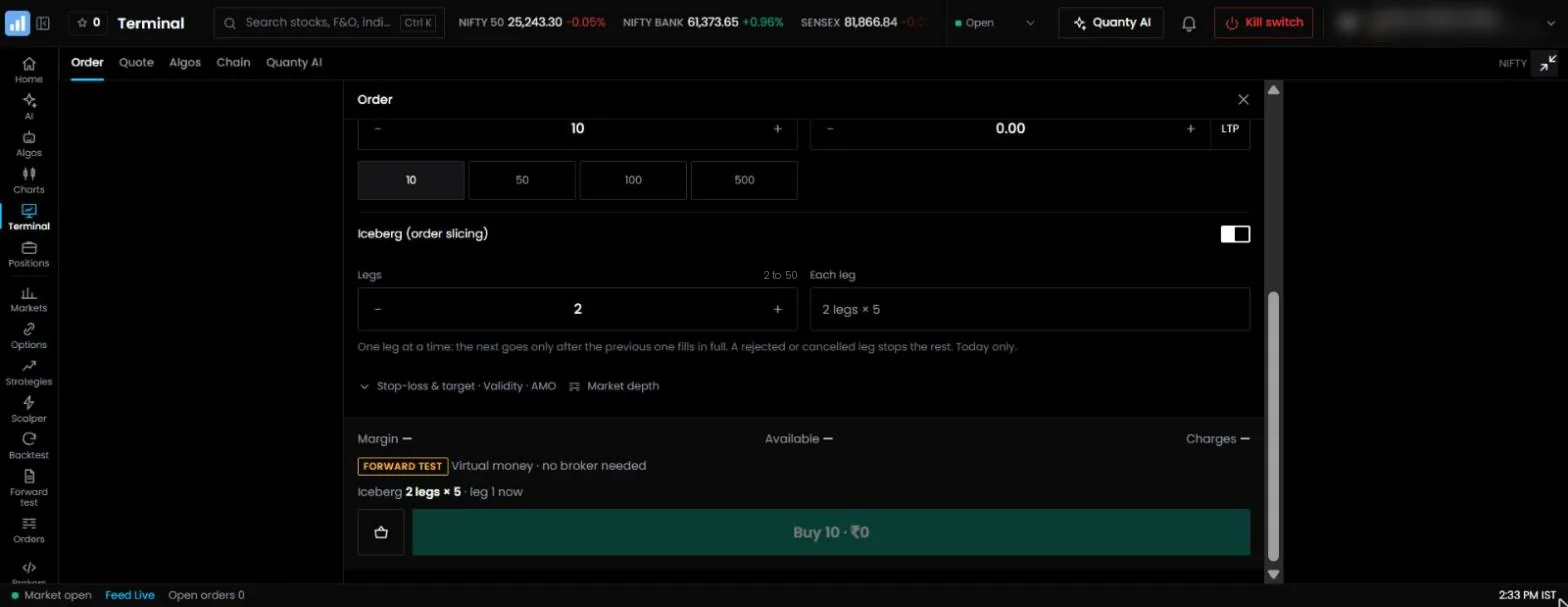
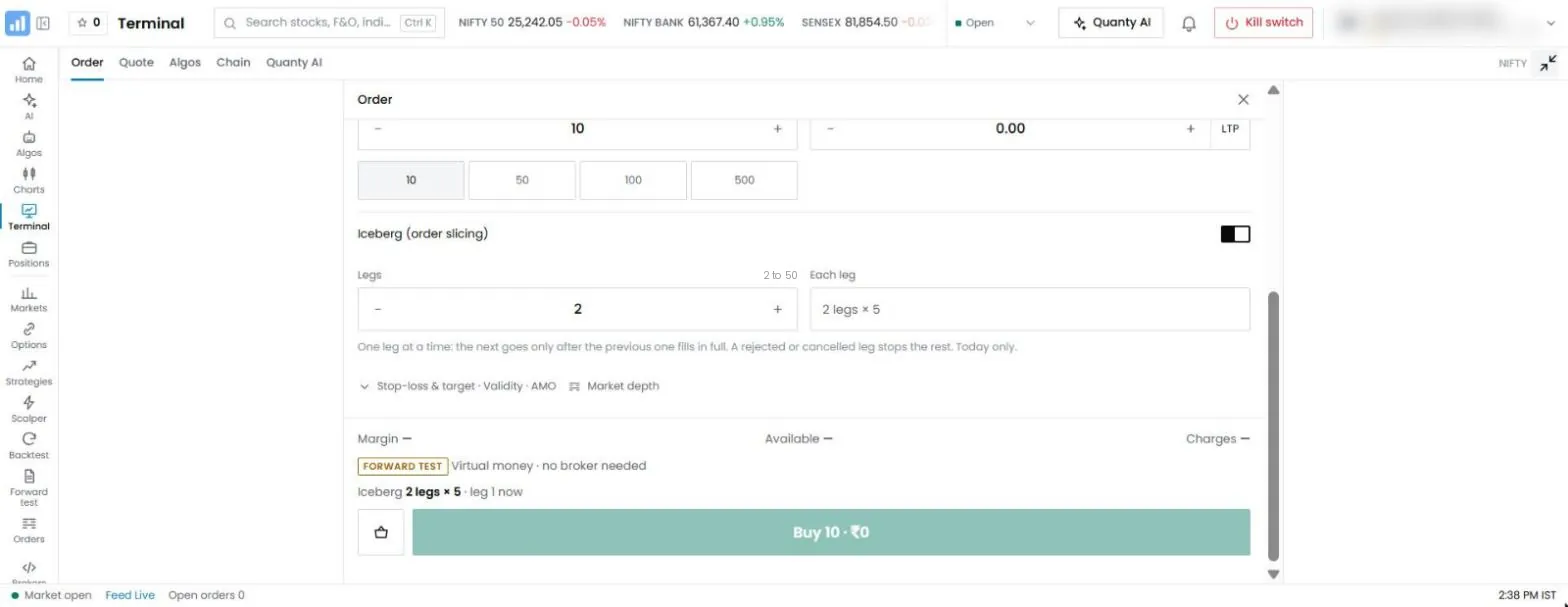
The QuantPower order sheet with Iceberg (order slicing) switched on: 2 legs of 5 for a quantity of 10, with the note that the next leg goes only after the previous one fills in full, on the Forward test accountThe QuantPower order sheet with Iceberg (order slicing) switched on: 2 legs of 5 for a quantity of 10, with the note that the next leg goes only after the previous one fills in full, on the Forward test account
The order sheet with Iceberg switched on: a quantity of 10 sent as 2 legs of 5, one leg at a time, here on the Forward test (virtual money) account. Real screen, 12 Nov 2026.
01

What it does

Iceberg (order slicing) splits one order into 2 to 50 legs and sends them one at a time. The next leg goes only after the one before it has filled in full.

02

Which orders

Limit and SL (stop-loss limit) orders only. Market and SL-M are refused, so no leg fills at a runaway price.

03

How long it runs

For the day, or for a number of minutes you choose (1 to 375). When the time runs out, no further leg is sent and the open leg is cancelled.

04

When something goes wrong

There are no retries. A rejected, cancelled or part-filled leg, a kill switch, a closed market or a price change the broker did not confirm stops the rest, and the Orders list shows the reason. Nothing carries over to the next day.

05

Changing the price

A new price on the open leg carries to every leg still to come. The quantity of a leg cannot be changed, so the split stays as you set it.

06 / Every order

Checked before
it reaches your broker.

01

One door for every order

Every order from QuantPower, whether you place it from the chart, a basket, the scalper or an algo, goes through the same path on the server. It checks the instrument, the lot size and the tick size, then your risk settings, before the broker sees anything.

02

Your risk settings come first

A kill switch, a daily loss limit and a maximum number of orders a day are checked on every order. They cover your whole account across every broker you connect. An order that closes a position is never blocked by them.

03

Never placed twice

Each order carries its own key. If the network drops and the request is sent again, the broker still gets one order. If the answer is lost, the app asks the server what happened before it tells you anything, and it never retries on its own.

04

Above the freeze quantity

The exchange rejects a single order above its freeze quantity. You do not have to split it yourself: the order goes as the fewest orders of whole lots that fit, sent together, and the order sheet tells you before you confirm (for example, “goes as 3 orders”). If one of them is refused, the rest are not sent and you are told how many went.

05

More than one broker

With two or more brokers connected, the order sheet has a broker picker. An order is never sent to a broker the app guessed, and each position’s exit goes to the broker that holds it.

07 / After the order

Positions, orders
and funds.

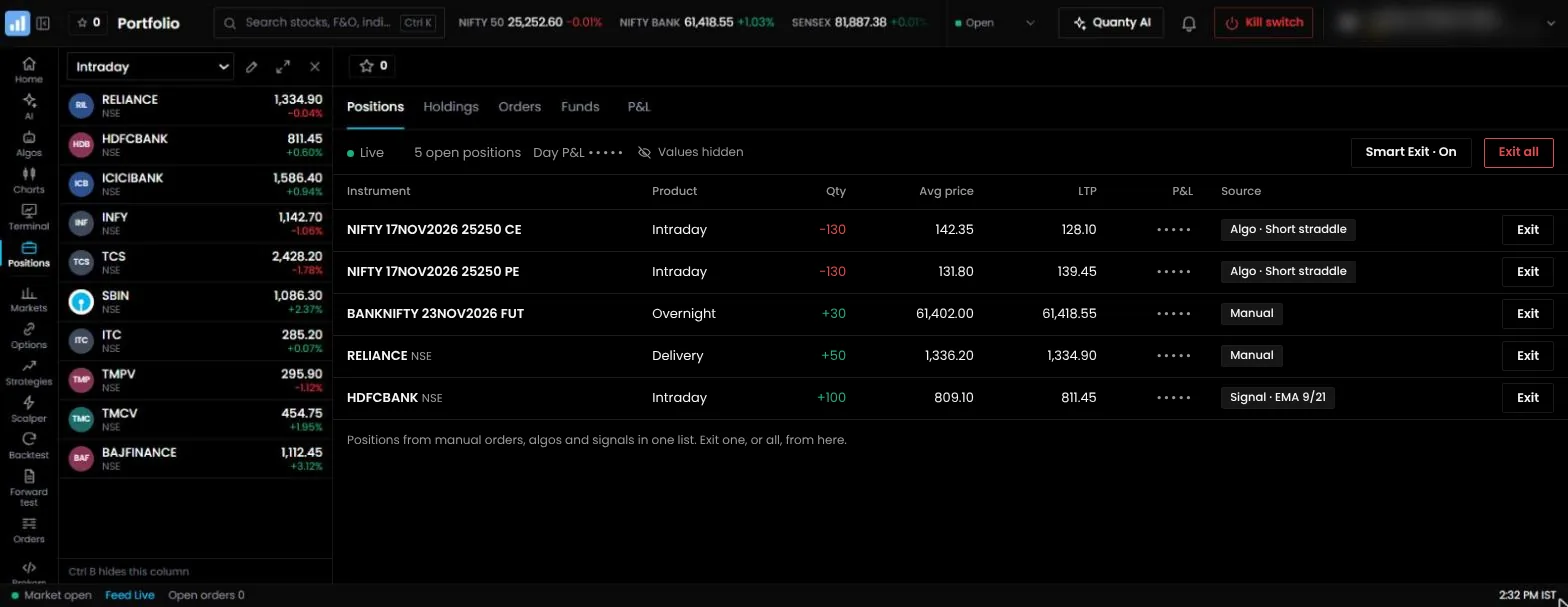
The Positions screen holds your positions, holdings, orders, funds and profit and loss, read from your broker.

The QuantPower Positions screen with tabs for Positions, Holdings, Orders, Funds and P&L, showing the message Connect your broker account to see this, next to a watchlist of NSE stocksThe QuantPower Positions screen with tabs for Positions, Holdings, Orders, Funds and P&L, showing the message Connect your broker account to see this, next to a watchlist of NSE stocks
The Positions screen before a broker is connected: it asks you to connect your broker account. The watchlist on the left shows live prices. Real screen, 12 Nov 2026.
01

Positions

Today’s positions with mark-to-market, per broker. Convert a position’s product or exit it, and group positions by the strategy that opened them, with a profit and loss subtotal for each group.

02

Exit all

Close everything, or one segment, in one go. It asks for your confirmation and your second factor.

03

Holdings and funds

Your portfolio with profit and loss, and your margin, collateral and cash, as your broker reports them.

08 / Know the limits

What it does not do,
stated plainly.

01

Arth.live itself places no orders

The site is charts and research. Your login on Arth.live gives it a chart token that can read market data, your own indicators and your chart alerts. It cannot read funds, positions or orders, and it cannot place, change or cancel one. Orders are placed in the QuantPower app.

02

Every chart action asks you first

There is no one-tap order straight from the chart line. A cancel, a drag, an exit or a new order always opens the order sheet so you can check it.

03

Some brokers are still being switched on

A broker whose connection is not switched on yet shows “Activation pending” on the Brokers screen. Your keys are saved, encrypted, but nothing is sent to that broker until it is live.

04

Brokers end the login every day

Each broker ends its login at the end of the day or sooner. Some need a daily sign-in on their own page, and the Brokers screen shows “Sign-in needed” when it is time. Nothing signs you in on your behalf.

05

Demo data never trades

Without a connected broker, the chart shows demo candles tagged as demo data. Sell and Buy then take you to log in or to connect your broker; nothing is placed on demo prices.

09 / Questions

Free bridge.
Your own account.

Can I place an order on Arth.live itself?

No. Arth.live is for charts and research and sends no orders. Its Trade link opens the same symbol in the QuantPower app, where your broker is connected and orders are placed.

Does the bridge cost anything?

No. Connecting your broker and placing your own orders from the chart cost nothing in QuantPower. Charts, the option chain, the scanner and the strategy builder are free too. Your broker’s own charges, such as brokerage and taxes, still apply.

Which brokers can I connect?

QuantPower lists 100+ Indian brokers. A broker whose connection is not switched on yet shows “Activation pending”. If yours is not on the list, you can ask for it on quantpower.tech.

Can I drag an order to a new price?

Yes, for an open limit or stop order that your broker lets you change. The order sheet opens with the new price for you to confirm. Bracket and cover orders and the legs of an iceberg order cannot be dragged.

Can I see my Forward test positions on the chart?

Yes. Positions in your virtual-money Forward test account show as lines marked “Forward test”. They are never mixed with your real positions, funds or risk limits.

Can I trade from an alert I set on Arth.live?

Logged in on Arth.live, a price or indicator alert can be linked to one of your own QuantPower webhook signals. When the alert fires, the signal is sent. If you have an algo listening to that signal in QuantPower, that algo may act, with every check of the order path. Arth.live itself never places the order.

Will Arth.live tell me what to trade?

No. Arth.live and QuantPower are software. They give no tips, calls, targets or buy/sell advice. Every trade is your own decision, and trading involves risk.